See it for yourself
Free and interactive, in your browser. No sign-up, nothing to install.
The FMS knob and data entry
The FMS knob sits at the bottom right of each display and has two rings. Nearly every entry uses the same few movements:
- Push the knob to turn the flashing cursor on or off.
- Turn the large (outer) ring to move the cursor or scroll a list.
- Turn the small (inner) ring to change the character or option.
- Press ENT to accept, CLR to erase or cancel, and MENU for the options on the current page.
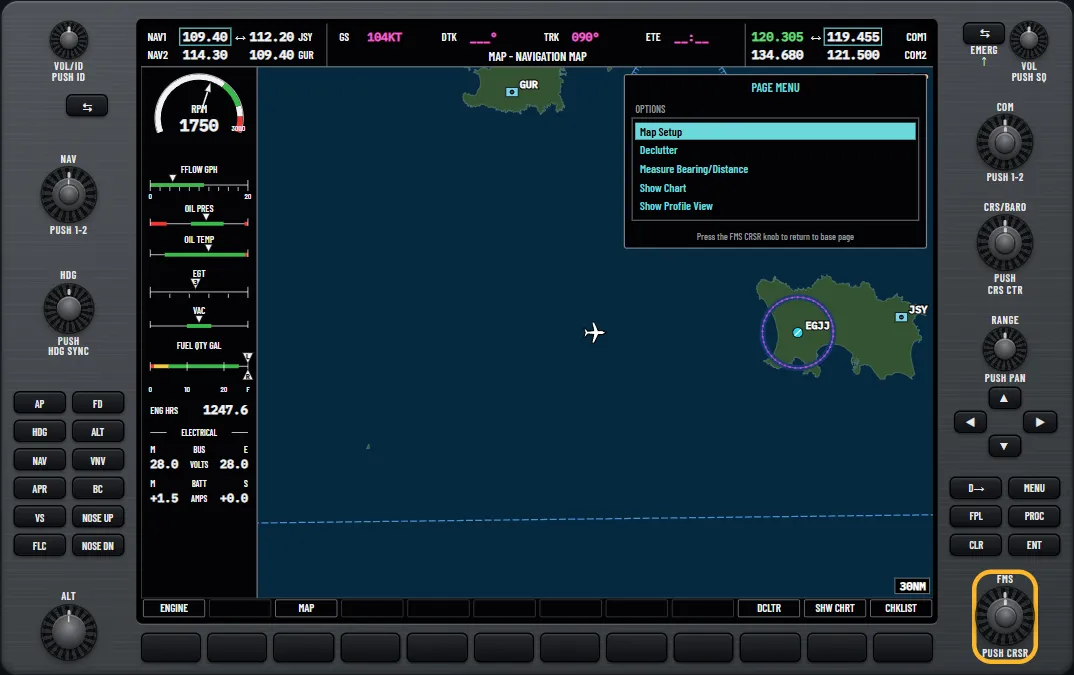
To spell an identifier, use the small ring for the letter and the large ring to move to the next position. The database scrolls through matching waypoints as you go, so a few letters are often enough. If an identifier belongs to more than one waypoint, ENT opens a Duplicate Waypoints window. Use the region, bearing and distance to pick the right one. Our G1000 basics guide covers the rest of the controls.
Going direct-to
Direct-to draws a course from where you are to one waypoint. The sequence is the same on either display:
- Press the Direct-to key. The window opens with the identifier field highlighted. It may already hold a waypoint from the active plan.
- Turn the small FMS knob clockwise and spell the identifier.
- Press ENT. The cursor moves to ACTIVATE?. Check the name, bearing, distance and course.
- Press ENT again to activate.
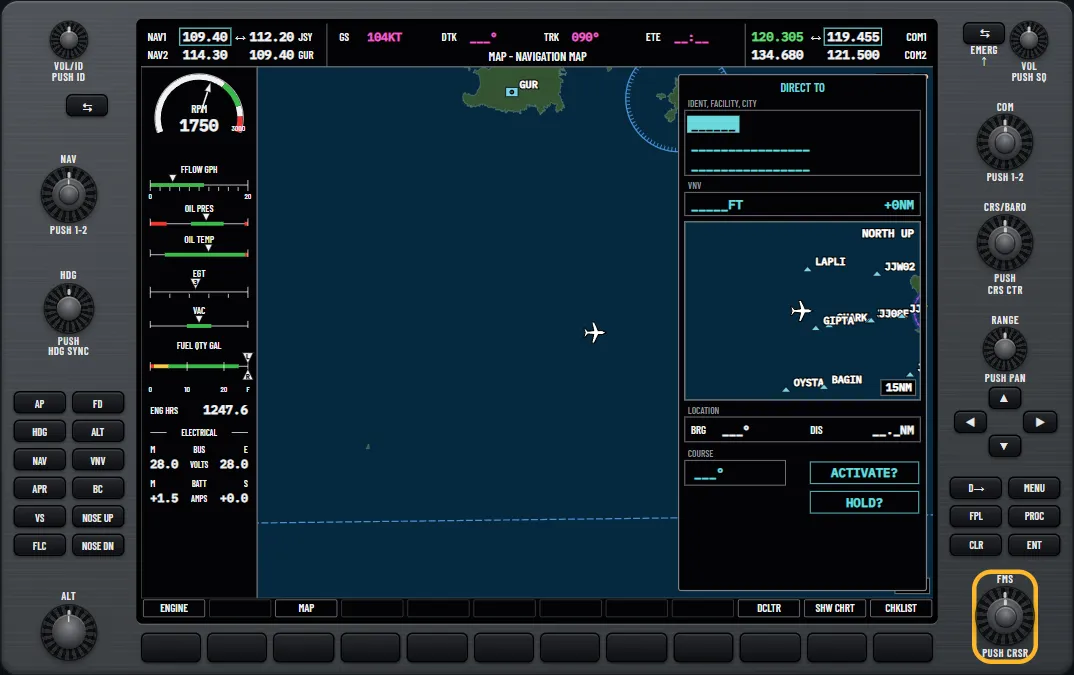
A magenta line now runs from the aircraft to the waypoint. Guidance continues until you replace it with another direct-to or a flight plan, or cancel it. The HSI only follows this course when GPS is its source, which the CDI softkey selects. See how to read the G1000 PFD.
Quicker ways to choose the waypoint
Each of these finishes with ENT twice.
- From a list. In the window, turn the small knob anticlockwise. It changes between the FPL, NRST, RECENT and USER tabs, and the large knob moves down the list.
- From a page. Highlight a waypoint in the flight plan or show it on a waypoint page, then press Direct-to.
- Nearest airport. Press the NRST softkey on the PFD. The nearest airport is already selected, so press Direct-to.
- From the map. Press the joystick on a navigation map page, move the pointer and press Direct-to. With nothing at that point, you get a temporary waypoint called MAPWPT.
Refreshing and cancelling
For a fresh course after drifting off the line, press Direct-to, then ENT twice. To cancel, press Direct-to, then MENU, and press ENT on Cancel Direct-To NAV. If a flight plan is still active, navigation resumes along the closest leg.
Creating, storing and activating a plan
Only one plan is active at a time, and that is the one the GPS navigates. It is erased at power-off, so store anything you want to keep.
Creating the active plan
- Press FPL on the MFD. The Active Flight Plan page opens.
- Push the FMS knob to turn the cursor on.
- Turn the small knob clockwise. A blank Waypoint Information window opens.
- Spell the first waypoint and press ENT.
- Repeat the last two steps for each waypoint.
- Push the FMS knob to turn the cursor off.
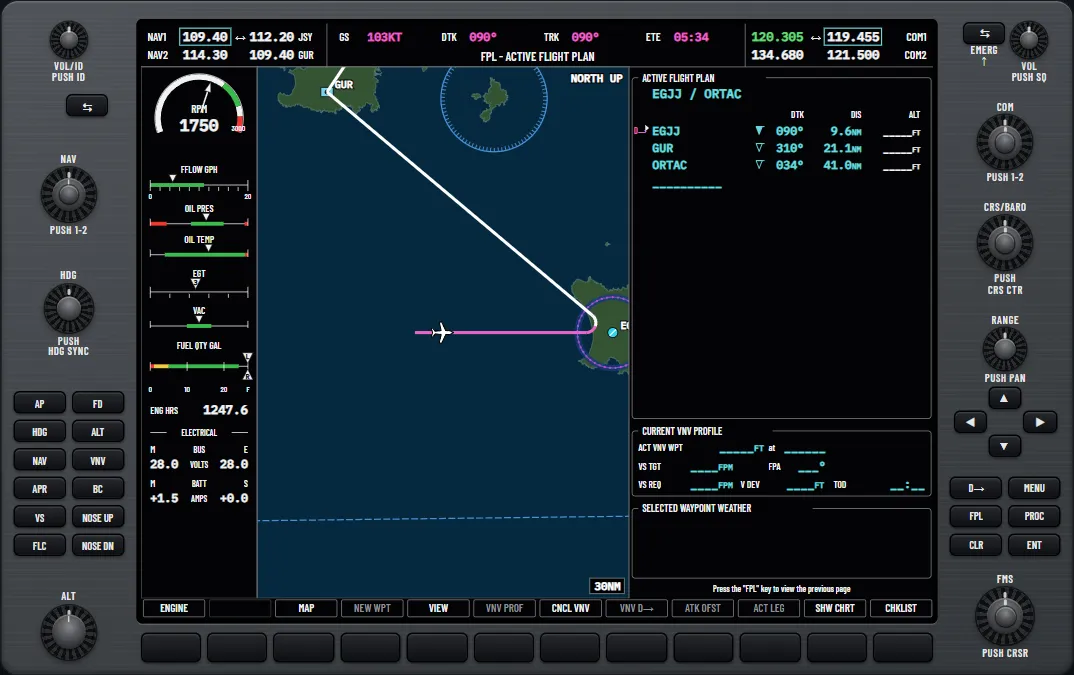
Try it: “Create a flight plan”: enter Jersey, the Guernsey VOR and ORTAC on the MFD
Storing a plan
On the Active Flight Plan page, press MENU, highlight Store Flight Plan and press ENT. With OK highlighted, press ENT again. The plan goes into the next free place in the catalogue. To see it, press FPL and turn the small knob clockwise to the Flight Plan Catalog page. The NEW softkey there starts a blank stored plan.
Activating a stored plan
On the Flight Plan Catalog page, push the FMS knob and highlight the plan. Press the ACTIVE softkey and, with OK highlighted, press ENT. For the trip home, the INVERT softkey activates the plan backwards and leaves the stored copy alone.
Try it: “Activate and invert a stored plan”: activate it from the catalogue, then fly it backwards
Editing en route
Each change to the active plan affects navigation as soon as you enter it, so check the identifier before you press ENT. Press FPL and push the FMS knob first, then:
- Insert a waypoint. Use the large knob to highlight the waypoint the new one goes in front of. Turn the small knob, spell the new waypoint and press ENT.
- Remove a waypoint. Highlight it and press CLR. With OK highlighted on the prompt, press ENT. Some approach waypoints, such as the final approach fix, cannot be removed one at a time.
- Skip to a later leg. Highlight the waypoint at the end of that leg, press the ACT LEG softkey on the MFD and confirm with ENT.
Approaches, departures and arrivals go in through the PROC key, as flying an ILS on the G1000 shows. To have the autopilot follow the plan, see the autopilot modes guide.
Try it: “Insert and remove waypoints”: put the Alderney beacon in front of ORTAC, then take it out with CLR
Trip planning
The Trip Planning page gives time, distance and fuel figures for a plan, one leg or any two waypoints. Turn the large FMS knob to the AUX group and the small knob to the page. Plan 00 is the active plan, and 01 to 99 are stored plans.
- AUTO takes its inputs from the sensors and works from your present position. MANUAL lets you type them in to plan ahead.
- FPL uses a flight plan and WPTS uses two waypoints you choose.
Fuel required is time to go multiplied by fuel flow, so the figures move with the wind and the power setting. Use them to cross-check your own fuel plan.
To put these sequences together, try the drill in the free glass cockpit trainer for the G1000. Starting west of Jersey, you activate a stored plan via Guernsey and then take a clearance direct to Jersey.
Try it: “Load a plan and go direct”
Questions pilots ask
- Which key is Direct-to?
- The one marked with a D and an arrow through it. There is one on the PFD and one on the MFD.
- How many flight plans can the G1000 store?
- 99 stored plans plus the one active plan. Each plan holds up to 99 waypoints, and airway and procedure waypoints count towards that.
- Does the active flight plan survive a power-off?
- No. The active plan is erased at power-off, and activating another plan overwrites it.
- What does the magenta line mean?
- It marks the active leg, the one being flown. Later legs are drawn in white.
- What does CLR do?
- It erases an entry, cancels an operation or closes a page menu. Held down on the MFD, it goes straight to the Navigation Map page.
- What does REM mean on the Trip Planning page?
- Remaining. With the active plan selected, the figures run from your present position to the end of the plan.
See it for yourself
Free and interactive, in your browser. No sign-up, nothing to install.
Sources and further reading
- FAA: Advanced Avionics Handbook (FAA-H-8083-6)
- FAA: Instrument Flying Handbook (FAA-H-8083-15B)
- SKYbrary: Glass Cockpit Avionics in Light Aircraft
A teaching aid, not an operating manual: the aircraft's flight manual, the published procedures and your instructor come first.
Unofficial training aid. Not affiliated with or endorsed by Garmin. Not for flight: always follow the approved pilot's guide and your instructor. Garmin and G1000 are trademarks of Garmin Ltd. or its subsidiaries.